Individual Flight Tracker
Lock Mach 2 onto one flight number and follow its route, timing, status, aircraft, altitude, and speed as live data becomes available.
For the flight you actually care about.
Enter an airline flight number, callsign, or aircraft tail number. Mach 2 saves the request and updates the display as the flight is found. A tail number follows that aircraft when live data is available; FlightAware schedule extras use the airline flight number.
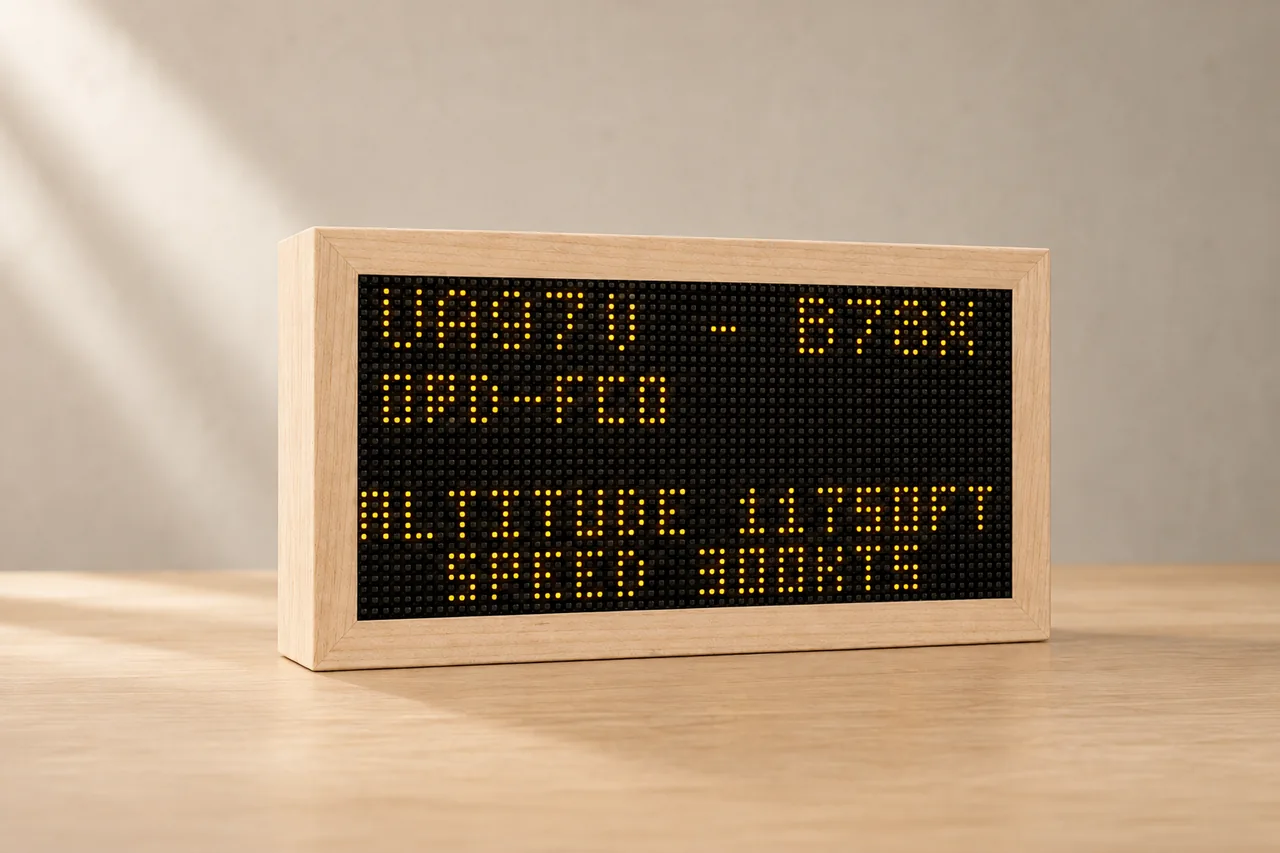
64 × 32 pixels · 3 mm pitch · 192 × 96 mm LED panel
7.56 × 3.78 in before the maple enclosure.
One callsign, richer context.
The tracker stores your requested flight number and follows the aircraft live once it's airborne — no API key needed. Linking your own FlightAware key in the owner portal adds pre-departure schedule and status on top.
Type the flight, press Track.
Open your owner portal, go to Track Flight, enter the flight number, and press Track. The scene may show searching while the first live snapshot loads.
Status at a glance.
Depending on the data available, the display can show callsign, route, aircraft type, flight status, estimated time remaining, altitude, and speed. Landing shows Landed, then the box returns to the overhead scanner about 20 minutes after arrival.
Tracking a specific flight
- Optional: link your FlightAware key. Airborne tracking works without any key. Your own FlightAware key, linked in the owner portal, adds pre-departure schedule and status — estimated departure, delays, taxiing.
- Enter the flight number. UA953 or UAL953 — either works, with no spaces.
- Press Track. The portal saves the request and switches the box to the tracker scene.
- Wait for the first result. Flights already in the air resolve fastest; without a linked key, a scheduled flight appears once it's airborne.
The key matters in the air, too. Live position, altitude, and speed are always free — but for an airborne flight, a linked FlightAware key adds the origin and destination, scheduled and estimated times, delay, and the progress countdown pages that tick down to arrival. Use the flight number for those extras; a tail number still tracks the aircraft live but can't unlock the FlightAware details.
If a tracked flight looks stuck
Give the scene time after switching. The box changes scenes first, then waits for the cloud to resolve and publish the live flight snapshot.
Check the identifier. UA953 and UAL953 both work — use whichever form you know.
Confirm the flight is active today. Future, canceled, or completed flights may not have live position data yet.
Expecting pre-departure status? Estimated departure, delays, and taxiing need your own FlightAware key linked in the portal — airborne tracking works without one. Contact me and I will help get a key working.